
Missing GTIN in Merchant Center: The Shopify Fix


⏱ 23 min read
A missing GTIN Merchant Center error is one of the most common reasons a Shopify product quietly disappears from Google Shopping. You filled in the barcodes, your products look fine in Shopify, and then Merchant Center lights up: “Missing value [GTIN].” Sometimes it is a genuine data gap. Just as often, it is Shopify sending the wrong thing, or Google expecting an identifier your product does not actually have. Either way, the missing GTIN Merchant Center warning is not cosmetic: it quietly caps how often your products show, and in the worst case pulls them from Google Shopping entirely.
This guide is the complete, Shopify-specific fix. It explains what Google is really asking for, why the error appears even when your barcodes are filled, how to correct it step by step, when you are allowed to sell without a GTIN, and whether you need to buy one. The aim is a clean feed that Google trusts, so your products compete on merit instead of being treated as “unknown”.

What a GTIN Actually Is
A GTIN, or Global Trade Item Number, is the number encoded in a product’s barcode. It is the identifier Google uses to match your listing to the same product in its global catalogue, which is how it attaches reviews, specs, and price comparisons. You already know its formats under other names: UPC (GTIN-12, common in the US and Canada), EAN (GTIN-13, standard across Europe), ISBN for books, and JAN in Japan.
Google does not demand a GTIN for everything. What it demands is identity. For a branded, manufactured product, that means the GTIN. If a product genuinely has no GTIN, Google accepts a combination of brand and MPN (Manufacturer Part Number) instead. The rule that trips up most stores is simple but strict: if a product has a GTIN assigned by its manufacturer and you do not submit it, Google can disapprove the listing.
Submit the real GTIN when one exists. Submit brand + MPN when it genuinely doesn’t. Declare identifier_exists = false only for truly one-of-a-kind, vintage, or handmade items. Never invent a number: Google checks length, check digit and whether the number belongs to your product, and it says invented or approximated values lead to disapproval.
GTIN vs UPC vs EAN: The Formats and How a GTIN Is Built
What is a GTIN number, exactly, and is it the same as a UPC or an EAN? GTIN is the umbrella name for the GS1 family of product numbers. UPC is the 12-digit version used in the US and Canada (GTIN-12), and EAN is the old name for the 13-digit version used across Europe (GTIN-13). Every UPC and every EAN is a GTIN, but not every GTIN is a UPC: an outer carton often carries a GTIN-14. Merchant Center has a single field for all of them, gtin, whichever format you send.
| Format | Digits | Typical use |
|---|---|---|
| GTIN-8 (EAN-8) | 8 | Very small packaging |
| GTIN-12 (UPC-A) | 12 | US and Canada |
| GTIN-13 (EAN, JAN, ISBN-13) | 13 | Europe, Japan, books |
| GTIN-14 (ITF-14) | 14 | Cases and trade units |
Google accepts exactly these lengths: 8, 12, 13 or 14 digits. It ignores spaces and dashes, and an old ISBN-10 should be converted to ISBN-13, and an 8-digit UPC-E code to the full 12-digit UPC (per Google’s specification for the gtin attribute, as of October 2026). A 12-digit UPC written with a leading zero is the same number as a GTIN-13, so a US barcode and a European listing can carry the same identifier.
How to Read a GTIN-13 (and Check the Last Digit)
A GTIN-13 has four parts:
- GS1 prefix (first two or three digits): shows which national GS1 organisation issued the number, for example 400 to 440 for GS1 Germany. It is not a country of origin: a product made in Asia for a German brand can still start with 40.
- Company prefix: the block of digits GS1 licenses to your company. The more numbers you license, the shorter this part, and the more digits stay free for your items.
- Item reference: the digits you assign yourself, one per product and per variant.
- Check digit (last digit): calculated from the twelve digits before it.
To calculate the check digit, multiply the twelve digits from the left alternately by 1 and 3, add everything up, and subtract the total from the next multiple of ten. Using the fictional number 400123456789: the digits in odd positions (4, 0, 2, 4, 6, 8) add up to 24, the digits in even positions (0, 1, 3, 5, 7, 9) add up to 25, times 3 makes 75. The total is 99, the next ten is 100, so the check digit is 1 and the full GTIN-13 is 4001234567891. Google requires this last digit to be present and correct; if it isn’t, Merchant Center reports an invalid GTIN.
Why a Missing GTIN Quietly Costs You Sales
This is the part generic guides skip. A missing GTIN Merchant Center warning is not just a box to clear, it is lost visibility you never see on a report. Google gives higher impression priority to products with valid identifiers, because it can classify and trust them. Without one, Google has to guess what your product is, and guesses lose auctions.
The direction is well documented. According to GS1 and Google, products with a valid GTIN see up to 40% more impressions and up to 20% more conversions than equivalent listings without one; those figures come from an older Google test. In its own tips on optimising product data, Google cites an average 20% increase in clicks for merchants who added correct GTINs (as of October 2026). On a catalogue of any size, that gap compounds every day the error sits unresolved.
What valid GTINs do for Shopping performance
Source: GS1 / Google, uplift for listings with a valid GTIN vs without
There is also a paid-media angle. Every Performance Max and Shopping campaign runs on the Merchant Center feed, so a feed full of identifier warnings is a tax on your ad spend. We cover how that plays out in the ways Shopify stores burn ad budget, and missing identifiers are one of the quietest.
“Missing Value” vs “Limited Performance”: Two Different Errors
Merchant Center shows two GTIN-related messages, and they are not the same severity. Treating a warning like a disapproval, or the reverse, wastes time. Read which one you actually have before you fix anything.
| Message | Severity | What it means |
|---|---|---|
| Missing value [gtin] | Error / disapproval | Product hidden in Shopping until fixed |
| Limited performance due to missing identifiers | Warning | Still shows, but with reduced visibility |
| Invalid GTIN | Error / disapproval | Wrong length, bad check digit, or a SKU in the field |
| Incorrect GTIN | Error | Valid format but doesn’t match the product |
A disapproval hides the product; a warning throttles it. Both cost money, but disapprovals cost it fastest. Sort the Merchant Center issues by severity and clear disapprovals first.
What “Limited performance due to missing identifiers [gtin, mpn, brand]” asks for. This warning means Google believes the product could be identified more precisely than your feed allows. The fix depends on the product: if it is a manufactured item, add the manufacturer’s GTIN; if it is your own brand without barcodes, make sure brand and mpn are both filled; if it is truly unique, set identifier_exists to false. Leaving the warning in place keeps the product live, but Google says products with missing or incorrect GTINs may have limited visibility. If the same feed also shows price, availability or policy issues, work through them with our guide to Merchant Center errors and how to clear them.
How Shopify Sends GTINs to Google (and Why It Breaks)
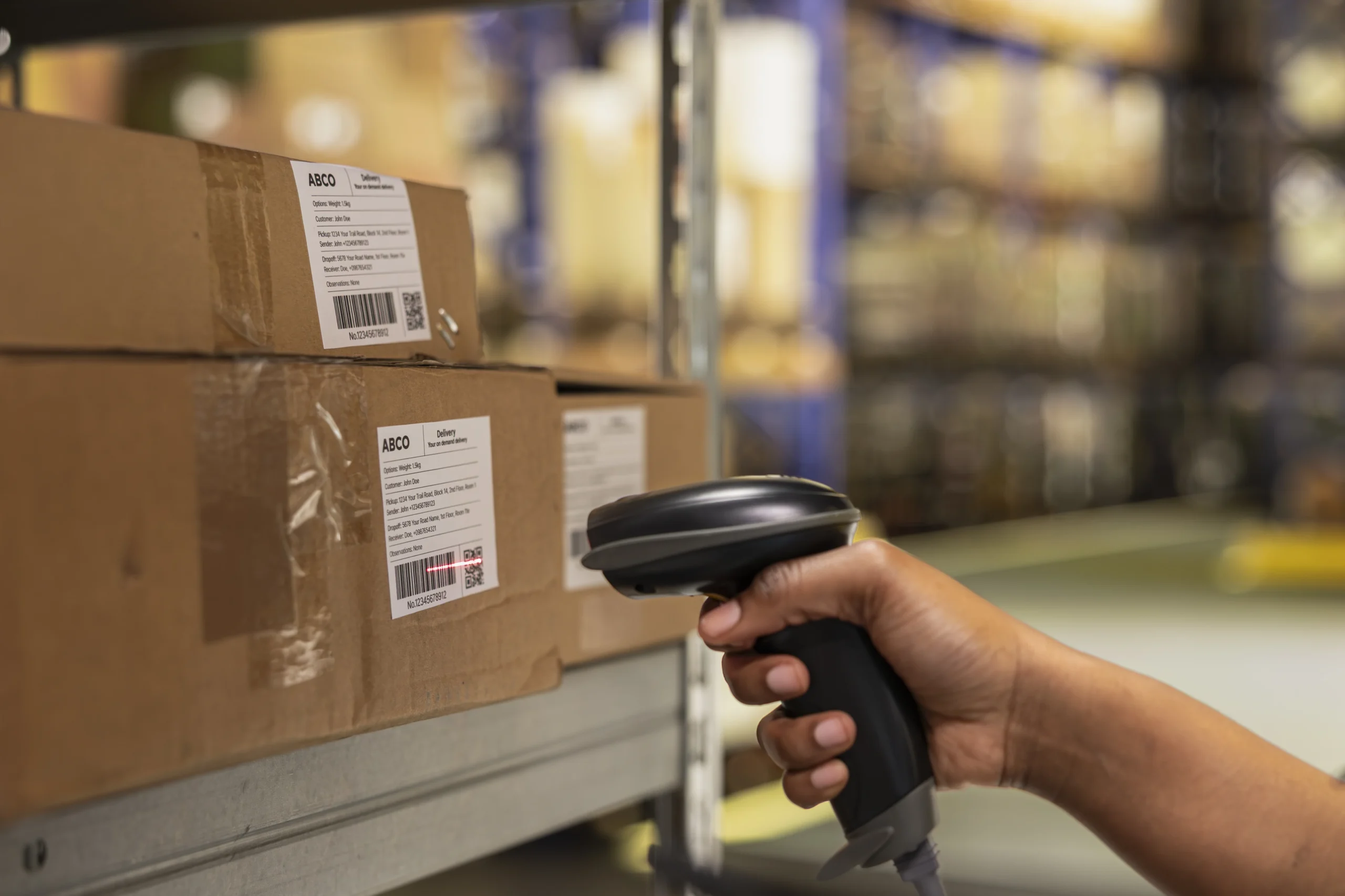
In Shopify, the GTIN lives in one place: the variant Barcode field, under the Inventory section of each product. Whatever sits there is what gets mapped to the gtin attribute in your feed. The MPN is usually mapped from the SKU, and the brand from the vendor field, though this varies by the feed app you use.
Here is the trap most Shopify stores hit. The free Google & YouTube channel app has a well-documented history of not passing barcodes to Merchant Center correctly, leaving stores with “missing GTIN” errors even though every barcode is filled in Shopify. If your data looks right in the admin but Google says it is missing, the app, not your data, is usually the culprit.
- Confirm the barcode is a real GTIN, not a SKU or an internal code.
- Check the variant, not just the product; barcodes live at the variant level.
- If barcodes are present but still flagged, test a dedicated feed app that maps identifiers reliably.
- Use metafields to override brand or MPN mapping where the defaults are wrong.
Never paste a SKU into the Barcode field to silence the error. A SKU is not a GTIN, so Google reads it as an invalid GTIN, which is a disapproval, worse than the warning you started with.
How to Fix a Missing GTIN in Merchant Center, Step by Step
To clear a missing GTIN Merchant Center flag for good, work in this order. It moves from diagnosis to the specific field you change, so you fix the cause rather than chase symptoms.
- In Merchant Center, open Products → Needs attention, filter to the GTIN issue, and download the affected products as a CSV.
- For each affected product, find the manufacturer’s real GTIN (on the packaging barcode or from your supplier).
- In Shopify, add it to the variant Barcode field, one per variant. Use the bulk editor for large catalogues.
- If a product truly has no GTIN, add
brandandMPNinstead (vendor field, plus SKU or a metafield). - For genuinely unique items, set
identifier_existsto false so Google stops asking. - Resync the feed, then recheck the Needs attention tab after Google reprocesses (usually within a day or two).
Structured product data is a broader habit worth building, and GTINs sit alongside it. Keep this aligned with your Shopify product schema and the rest of your technical SEO for Shopify, so the same identifiers feed both Google Shopping and organic rich results.
How to Find Your GTIN Number and Check It Before You Sync
Before you paste hundreds of barcodes into Shopify, run a quick validation pass. Most “invalid” or “incorrect GTIN” messages can be caught with these five checks before the feed ever syncs.
- Check the length: only 8, 12, 13 or 14 digits, no letters. Watch out for spreadsheets: Excel strips leading zeros from UPCs and turns 13-digit numbers into scientific notation. Format the barcode column as text before you edit and re-import the Shopify product CSV (the barcode column is called
Barcodesin current exports). - Check the check digit: with GS1’s free check digit calculator or a spreadsheet formula based on the calculation above.
- Exclude restricted ranges: GTINs starting with 2, 02 or 04 are reserved for internal use, and 05, 98 and 99 are coupon ranges. Google says not to submit these.
- Check the match: does the number really belong to this product? The “Verified by GS1” lookup shows which company a number is licensed to. A valid number that belongs to another product triggers “Incorrect GTIN” in Merchant Center; according to Google, this often happens when a GTIN from a different item was copied by mistake.
- Find duplicates: sort your export by barcode. If two variants share a number, at least one of them is wrong.
Where to find the right number: if it is not on the packaging, ask the manufacturer or distributor for their product master data. Google also points to the product details in Google Shopping, and to ISBNdb or Google Books for books. What you should not do is borrow a number from a similar product. Google is explicit here: leave the field empty rather than send a wrong value, an internal SKU, or an estimated number.
On large catalogues with thousands of variants, this pass becomes a project of its own. If your team doesn’t have the time, a Shopify agency can take it on; at Skalum it is part of our product feed optimization for Shopify stores.
Selling Without a GTIN: When It’s Actually Allowed
You can sell on Google Shopping without a GTIN, but only in specific cases, and the wrong call gets you disapproved. The deciding question is never “do I want to add one”, it is “does this product have one assigned”. The table makes the call for you.
| Your product | What to submit | identifier_exists |
|---|---|---|
| Branded, manufactured item | The real GTIN | true (default) |
| Own brand, no GTIN yet | Brand + MPN, or buy a GTIN | true (with brand + MPN) |
| Handmade / one-of-a-kind | Nothing required | false |
| Vintage / antique | Nothing required | false |
| Custom-made to order | Nothing required | false |
Setting identifier_exists = false is a legitimate, Google-sanctioned path, not a loophole. What is not allowed is declaring “no identifier” on a product that clearly has one, such as a name-brand item you resell. Google can detect it: if Google finds evidence that an identifier exists, the product receives a warning, and products with missing or incorrect GTINs can lose visibility. The fix is to supply the real GTIN.
Split your catalogue into two buckets: products that have a manufacturer GTIN, and products that genuinely don’t. Fix the first with real numbers, and flag the second with identifier_exists = false. That single split resolves most feeds.
Is a GTIN Mandatory? Own Brand, Private Label, and Dropshipping
A GTIN is mandatory only when one exists for the product. For your own brand, Google’s guidance is clear: if you are the only manufacturer and seller, use your brand name as brand and a unique identifier of your choice, such as the SKU, as mpn. If you have no official brand at all, your store name counts as the brand. If you personalise a branded product (engraving, printing), send the GTIN of the original product if it has one, and describe the personalisation in the title and description.
Dropshipping and resale work differently. If your supplier ships a branded product, it usually has a manufacturer GTIN, so ask the supplier for it instead of setting identifier_exists = false. If it is unbranded goods without a barcode, brand plus MPN is the clean route.
Do You Need to Buy GTINs? GS1, Cost, and Recycled-Code Traps
If you manufacture your own products, or sell private-label goods without barcodes, buying GTINs is often the higher-performing choice, because a real GTIN unlocks the impression and feature advantages above, while brand + MPN only keeps you eligible. The one correct source is GS1, the global body that issues them; you register with your national GS1 member organisation and buy a single number or a bulk allocation. Pricing varies by country and quantity, so check your local GS1.
The expensive mistake is buying cheap GTINs from third-party resellers. Recycled codes are often already licensed to another company, and a number that Google associates with a different product ends up as an “Incorrect GTIN” issue or a disapproval. A bargain code that disapproves your listing is not a bargain. For a European catalogue, the format you want is usually EAN-13; for the US market, UPC.
How to Get a GTIN Number: What GS1 US Charges
For US-based stores, GS1 US is the official source. According to the GS1 US pricing page (as of October 2026), you can buy either single GTINs or a GS1 Company Prefix that lets you create your own numbers:
| Option | Numbers | Initial fee | Annual renewal |
|---|---|---|---|
| Single GS1 US GTIN | 1 | $30 | none |
| GS1 Company Prefix | 10 | $250 | $50 |
| GS1 Company Prefix | 100 | $750 | $150 |
| GS1 Company Prefix | 1,000 | $2,500 | $500 |
| GS1 Company Prefix | 10,000 | $6,500 | $1,300 |
Count variants before you choose: 40 products in four variants each need 160 numbers, which already puts you past the 100-number prefix. Outside the US, your national GS1 organisation (GS1 UK, GS1 Germany and so on) sets its own prices, and GS1 US notes that its pricing can change.
Every variant needs its own GTIN. A shirt in three sizes and two colours is six sellable items and six numbers, not one. Buy your GS1 allocation with variant count in mind, not product count.
Variants, Bundles, and Multipacks
The identifier rules shift for products that aren’t a single standard item, and these edge cases cause a surprising share of disapprovals.
- Variants: each size and colour is its own sellable unit with its own GTIN, never a shared one.
- Multipacks: a pack of the same item that you assembled yourself uses the GTIN of the single item plus the
multipackattribute (the quantity). Only a multipack put together by the manufacturer has its own GTIN, and then you submit that one. - Bundles: a custom set of different products you created uses
is_bundleand the GTIN of the main item. A bundle sold by the manufacturer carries its own bundle GTIN. - Custom / made to order: no GTIN exists, so
identifier_exists = falseis correct.
Your Pre-Ads GTIN Checklist
Run this before you push budget into Shopping or Performance Max, because ads only amplify whatever the feed already says. When we take over Shopping campaigns as a Shopify Google Ads agency, this is the first list we run.
- ✅ Every branded product carries its real GTIN in the variant Barcode field.
- ✅ No SKUs or internal codes sitting in the Barcode field.
- ✅ Products with no GTIN carry brand + MPN, or are flagged
identifier_exists = false. - ✅ Feed app confirmed to pass identifiers correctly, not the buggy default.
- ✅ Aim for 90%+ valid-GTIN coverage across the catalogue.
- ✅ Needs attention tab clear of GTIN errors after a resync.
Common Mistakes
Most GTIN problems on Shopify come down to the same handful of avoidable errors.
- 🔢 Putting a SKU in the Barcode field, which Google reads as an invalid GTIN.
- 🚫 Declaring
identifier_exists = falseon resold name-brand products. - 💸 Buying cheap recycled GTINs from non-GS1 resellers.
- 🧩 Giving every variant the same GTIN instead of a unique one each.
- 🔌 Assuming the free channel app passes barcodes correctly when it often doesn’t.
- ⏳ Leaving warnings unresolved because the product “still shows”, while it quietly underperforms.
Real GTIN where one exists, brand + MPN where it doesn’t, identifier_exists = false for genuine one-offs, and a feed app you trust to deliver all three. Get those right and the error clears for good.
Conclusion
A missing GTIN Merchant Center error is small on screen and expensive in practice: fewer impressions, weaker matching, and sometimes an invisible product. The fix is rarely complicated once you know whether the problem is your data, your feed app, or a product that never had a GTIN to begin with. Submit real numbers where they exist, use brand and MPN where they don’t, declare unique items honestly, and buy from GS1 rather than a reseller. Do that, and your catalogue stops being “unknown” to Google and starts competing on equal footing, before you spend a cent more on ads.
Want your product feed and Shopping setup working properly? Here’s where to start.
A clean Merchant Center feed and Shopping setup, so your budget buys visibility, not warnings.
Fix my feed →Product data and structured markup done right, so identifiers feed ads and organic alike.
Sort my SEO →Find where the clicks you already pay for quietly fail to convert on your store.
Get an audit →Frequently Asked Questions
It means Google expected a Global Trade Item Number for that product and didn’t receive a valid one. For branded, manufactured products the listing is usually disapproved and hidden from Shopping until you add the correct GTIN, or provide brand and MPN if the product genuinely has no GTIN.
Only where one exists. If a product has a manufacturer GTIN, you must submit it or risk disapproval. If it genuinely has none, you can sell using brand plus MPN, or by setting identifier_exists to false for one-of-a-kind, vintage, or handmade items.
In the variant Barcode field, under the Inventory section of each product. Shopify maps that field to the gtin attribute in your Google feed. Add one per variant, and use the bulk editor for large catalogues rather than editing products one by one.
This is usually the free Google and YouTube channel app, which has a known history of not passing barcodes correctly. If your data is right in the admin but Google reports it missing, test a dedicated feed app that maps identifiers reliably, or fix the mapping with metafields.
Yes, for products that genuinely have none: handmade, vintage, custom, or your own brand without assigned barcodes. Set identifier_exists to false, and add brand and MPN where possible. Do not declare no identifier on a resold name-brand product, as Google can detect it and disapprove the listing.
Buy from GS1, the official issuing body, through your national GS1 member organisation. In the US, GS1 US charges $30 for a single GTIN with no annual fee, or $250 plus $50 a year for a company prefix covering 10 numbers (as of October 2026); other countries set their own prices. Avoid third-party resellers selling cheap recycled codes, since they are often already licensed to another company and can trigger an “Incorrect GTIN” issue.
GTIN is the umbrella term for the number in a barcode. UPC (GTIN-12) is common in North America, EAN (GTIN-13) is standard in Europe, and ISBN covers books. MPN is the Manufacturer Part Number, used with brand as a fallback when a product has no GTIN.
Yes. Every sellable variant, each size and colour combination, is a distinct item and needs its own unique GTIN. Reusing one GTIN across variants causes matching problems and disapprovals. Plan your GS1 allocation around total variant count, not the number of parent products.
Look at the barcode on the product packaging: the digits under it are the GTIN (UPC in the US, EAN in Europe). If there is no packaging, ask the manufacturer or distributor for their product master data. Don’t copy a number from a similar product; Google says to leave the field empty rather than submit a wrong value.
It is a warning, not a disapproval: the product still shows, but Google believes it could be identified more precisely. Add the manufacturer’s GTIN if one exists, fill brand and MPN for your own brand, or set identifier_exists to false for genuinely unique items.
Check that it has 8, 12, 13 or 14 digits, that the last digit is a correct check digit, and that it does not start with a restricted range such as 2, 02, 04 or the coupon ranges 05, 98 and 99. Then confirm with the “Verified by GS1” lookup that the number is licensed to the right company.
Daria Shevchenko


